
One gallery, one workflow.
Enable selection in your existing AiGallery, with the event photos you have already uploaded.
Enable Photo Selection inside your AiGallery, share it with your client, and organize their selections using the same folders you uploaded.
Your existing gallery. Your client’s favourite photos.
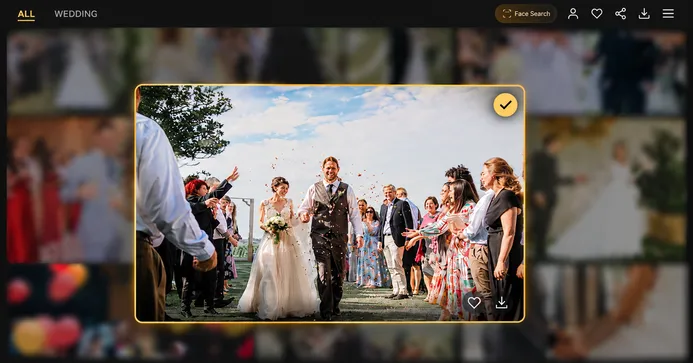
Your event photos are already organized in AiGallery. Enable Photo Selection there, then send your client the gallery link to review and choose their favourites.
From the first browse to the final shortlist, their choices stay connected to the event and the folders you created.
Explore AiGallery photo sharingA straightforward photo selection workflow for wedding photographers and busy studios.
Organize your AiGallery around the event: Haldi, Mehndi, Wedding, Reception or your own folder names.
Turn on selection for that gallery. The photos already in it are ready for your client to choose from.
Send the gallery link and any required access details. Your client reviews photos and submits their choices online.
Use the Folder Image Separator for each event folder to copy matching selected originals into an output folder you choose.
Haldi, Mehndi, Wedding and Reception each have their own story. After client selection, handle the chosen photos according to those same event folders.
Choose the original folder and output location for each event folder.
On your computer, open the separator for an AiGallery folder. Use Select Original Folder, then Select Output Folder. Matching client-selected originals are copied into that folder’s _Separated output folder.
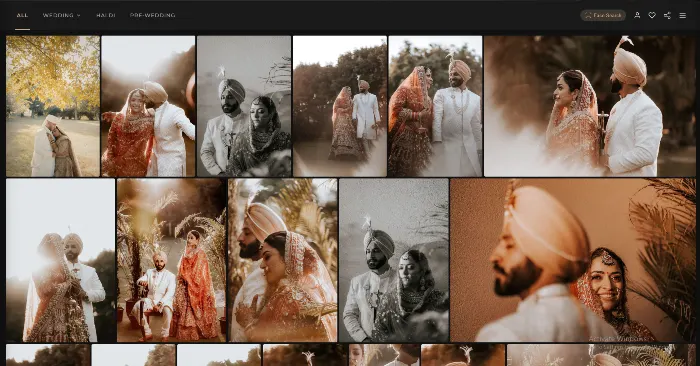
Give clients a clear way to review the event at their own pace, from their phone or computer.
Browse the gallery using its event folders.
Selection counts help track choices across the gallery and the current folder.
The gallery records their selection as completed, ready for your next step.
Enable selection in your existing AiGallery, with the event photos you have already uploaded.
Clients review and select photos online, on a phone or computer that fits their day.
Work with the client’s choices according to your original event folders.
Use the selected originals to prepare your editing work or begin the client’s album design.
What photographers and clients need to know before getting started.
Ask us about your workflowOnline photo selection lets your client review an event’s photos in a shared gallery, mark their choices and submit a shortlist. For wedding photographers and studios, it connects the client’s favourites to the next editing or album step.
Yes. Photo Selection is a feature inside AiFotonex AiGallery. Enable it for an event gallery and share that same gallery with your client for photo viewing and selection.
No. Enable Photo Selection for the photos already uploaded to your AiGallery. You can keep the event’s existing folders and use the same gallery for sharing and client selection.
Yes. Clients can open the shared gallery in a phone or computer browser, review photos, mark their choices and submit their selection. They use the access details configured for that gallery.
Yes. The Folder Image Separator works with client-selected photos from a particular AiGallery folder. On your computer, choose the matching original photo folder and an output location. It copies matching files into a folder named after the gallery folder with “_Separated” added, such as “Haldi_Separated”. Repeat for the other event folders.
The client submits their choices, and the gallery records the selection as completed. You can then work with the selected photos folder by folder, using the Folder Image Separator to prepare copies of matching originals for editing or album design.
Use a supported desktop browser, such as Chrome or Edge, with folder-access permission. Keep the original photos available on your computer and select the corresponding source folder. The tool matches selected filenames to local files, so keeping the original filenames helps it find the right photos.
The Folder Image Separator copies matching client-selected originals into the output location you choose. It does not move or delete the source files. Unselected photos are not included in this selection-copy step.
Enable selection inside AiGallery. Let clients choose online.
Keep the next step organized, folder by folder.